ACR is excited to welcome ‘SHIFT’. A new Payment Platform integration allowing your customers to pay their ACR Invoices seamlessly. Ask your Customers to register with Shift now and remove those time consuming Debtor reminders and follow ups for payment!
How to Configure Shift
Before you can start processing invoices through Shift, let’s walk through the following setup steps:
1. General Ledger / Banking Account
Select or create a dedicated General Ledger Account for Shift Clearing. Decide if you need to use a separate Bank Account for Shift transactions, if not the default Banking System will be used. Once created, email the ACR Training Team with the GL Account number and Banking System if required and we will configure this within your system.
ACR takes care of the accounting entries associated with Shift payments. For example, when a transaction completes, the system diverts that Shift transaction owing value from the Debtor’s account (thus not showing on the Debtor as owing) and places the owing value in the Shift Clearing GL account. When you receive the payment from Shift this should be posted as a Cash Receipt to the Shift Clearing GL account.
When the Invoice Sales Journal is printed, the following additional entries will occur:
- Debit Shift Clearing GL Account.
- Credit Debtors GL Account.
This is created via a system generated Cash Receipt for the configured bank account. This Cash Receipt will debit the Shift Clearing GL Account with the Total amount, and credit each Customer for each payment. The credit on each debtor account will attempt to auto allocate against the relevant invoice.
2. Debtor Terms Maintenance
Within ‘Debtor Terms Maintenance’ create a new Debtor Term, called for example:‘SHIFT’. This is what the system will use to determine if the customer has a payment agreement setup with Shift.
3. Invoice Configuration > Shift
Only a user part of the Administrator group will be able to access the new Shift configuration. Navigate to Invoice Configuration and select the new ‘Shift’ tab.
From here a new window will be displayed allowing the user to configure the Shift program:
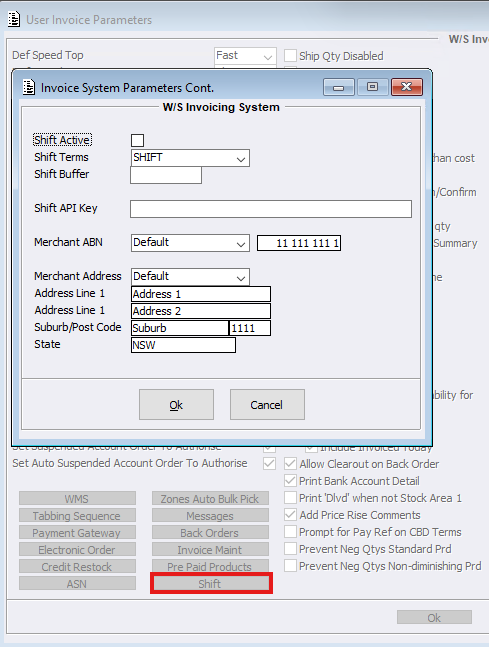
Tick the ‘Shift Active’ checkbox to initiate the program in your system.
Select the newly created Debtor Terms.
Optionally, enter a buffer percentage to allow customers to be pre-approved for an amount above the initial invoice value. This could be used to allow for Price rises or substituted products without having to create a new Shift checkout, 2-5%
Enter your Shift API Key, supplied by Shift
By default your configured ABN in ACR will load as the Merchant ABN. If you have a different ABN registered with Shift, change the drop down to ‘Specified Value’ and enter your Shift registered Merchant ABN.
By default your configured Address in ACR will load as the Merchant Address. If you have a different address registered with Shift, change the drop down to ‘Specified Value’ and enter your Shift registered address details.
4. Customer Maintenance > Balances
Once you have Customers registered with Shift, you will need to link them using the new Shift Debtor Term. Open Customer Maintenance Customer file > Balances tab, and assign the new Shift Debtor Term.
Once these steps are complete, you’re ready to start processing invoices through Shift!
How to Create a Shift Invoice
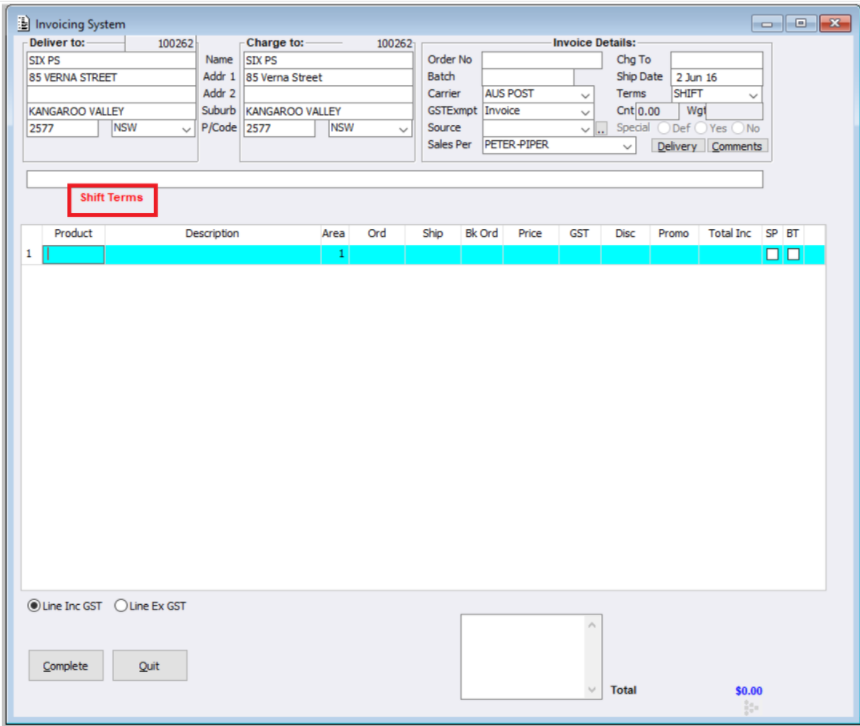
The great news is that there is no additional process required when creating an invoice for a Shift customer.
When an invoice is created, ACR will automatically recognise that the customer is registered with Shift based on their Debtor Terms. The system will then use the customer’s ABN to locate and validate their Shift account.
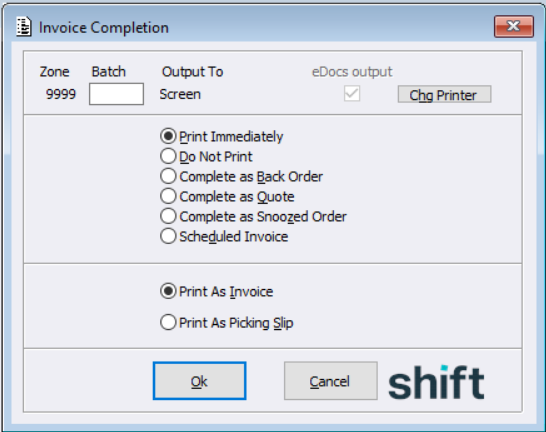
On completion of the invoice, a Shift Checkout will automatically be created for the invoice amount, including any additional buffer percentage configured.
What happens next depends on whether the customer has Auto Billing enabled within Shift.
Customers with Auto Billing Enabled
If the customer has Auto Billing enabled through Shift, the Checkout will automatically be authorised and the invoice will continue through the normal completion process.
Customers without Auto Billing Enabled
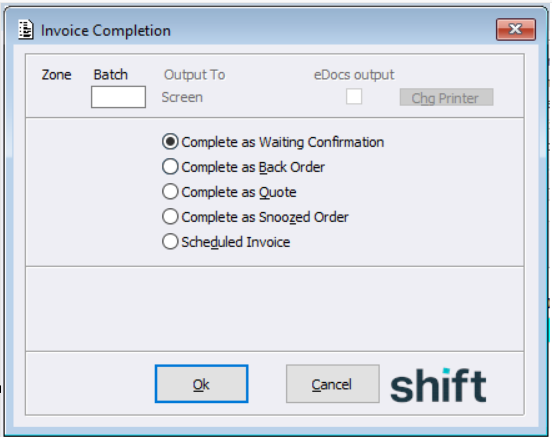
If the customer does not have Auto Billing enabled, the invoice will default to ‘Waiting Confirmation’.
This means the customer will need to confirm the order through Shift before the invoice can proceed.
Behind the scenes, Jobmaster will regularly check whether any customers have authorised their outstanding Shift Checkouts.
- If approved: The Checkout will be authorised and the invoice will continue through the normal completion process, based on the ‘Auto Complete As’ configuration within Invoice Configuration. Note: this configuration has been updated and relabelled from ‘Scheduled Inv Cmp’
- If declined: The invoice will automatically be cancelled.
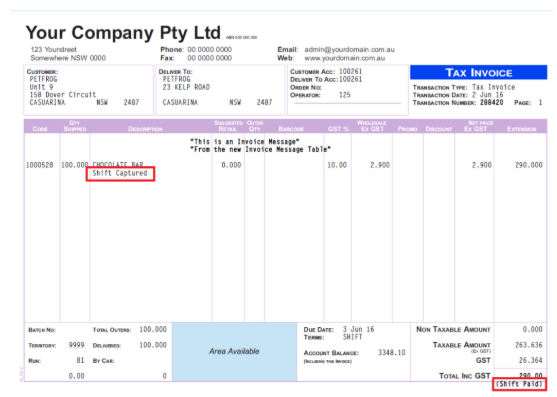
The Invoice edocument along with the Invoice log will display ‘Shift Captured’.
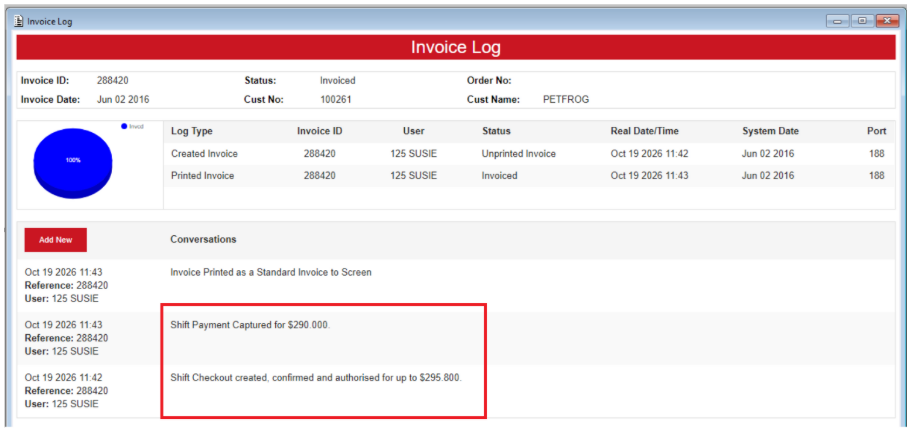
Shift Checkout and Payment Capture details are automatically recorded as a conversation in the invoice log
Additional Information
There are a few other scenarios to be aware of when processing invoices through Shift.
1. Multiple and Zone Invoices
- When an invoice splits into multiple invoices, whether these are multiple Zone Invoices to be amalgamated and/or multiple Normal Invoices, a separate Shift Checkout will be created for each Master Invoice or Normal Invoice.
- If a Zone Invoice is modified to use Shift, the Checkout will be created based on the combined total of all Zone Invoices (the Master Invoice total).
2. Scheduled Invoices
For Scheduled Invoices, the Shift Checkout will not be created until the invoice reaches its scheduled date and time.
3. Cancelled Invoices
- If an invoice is cancelled after a Shift Checkout has already been created, ACR will automatically communicate with Shift to void the Checkout.
4. Modifications
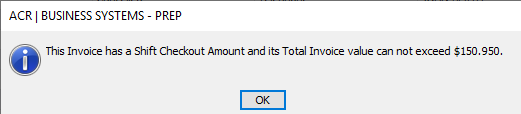
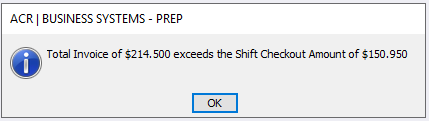
- Any modifications to the invoice will need to stay at or under the authorised Shift Checkout value (which includes the percentage buffer if configured). The Shift total will be the final Invoice total.
5. Refunds and Negative Invoices
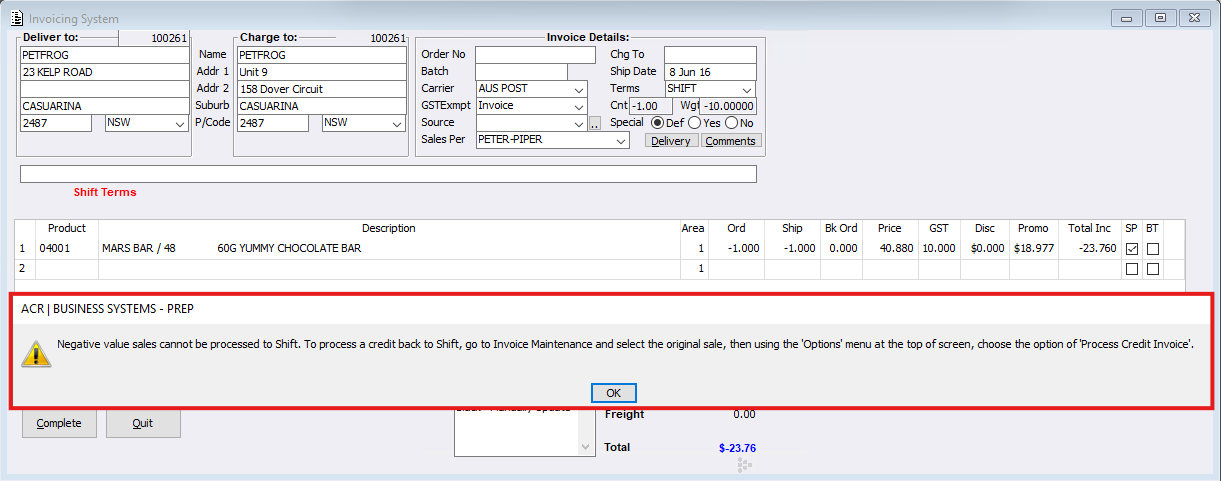
Negative invoices cannot be created using Shift. If a refund is required, users will need to process this through Invoice Maintenance > Reverse Selected.