Within the RF Gun system we have created the ability to Stock receipt
- a Delivery Docket by Order
- a Manual Delivery Docket
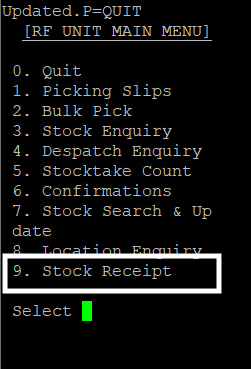
Users will see the new option, 9. Stock Receipt, on the RF Unit’s Main Menu. Enter 9 and the next screen will allow users to select a further option.
RF Main Menu
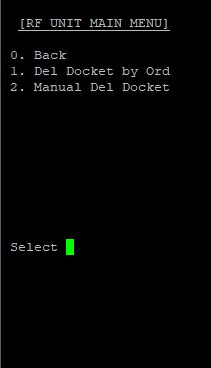
For this example we are using the Delivery Docket by Order option, please review notes on using the Manual Delivery Docket within our Self Help Resource.
Home Screen
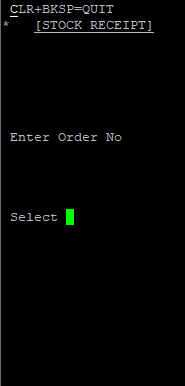
On selection of the Stock Receipt option, the first screen that appears is the Home screen where the user loads a Delivery Docket.
Users can:
- enter an Order number
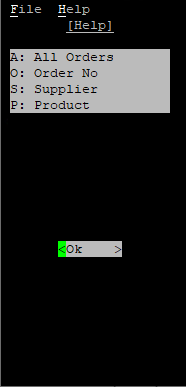
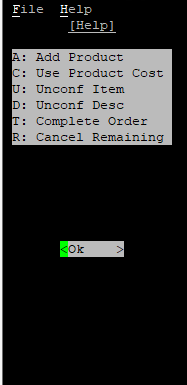
- enter H to display the Help menu
- enter S to search by Supplier
- enter P to search by Product
- enter A to search by All Orders
Home screen H > Help screen
When searching for Orders, users will see a new screen load- the Index Screen.
Index screen
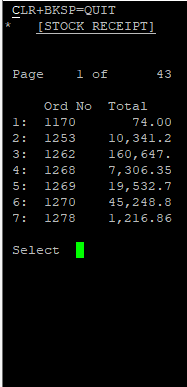
Upon searching for Orders, a new screen known as the Index screen will load.
Users can:
- enter the number corresponding to the required Order number
- enter H to display the Help menu
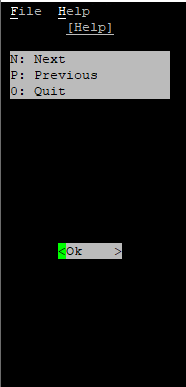
- enter N to move onto the Next page
- enter P to move onto the Previous page
- enter 0 to exit, the home screen will reload
Index Screen H > Help Screen
Order Screen
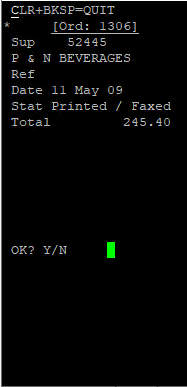
Once an Order has been selected, a new screen known as the Order screen will load.
Users can then:
- View the Order details
- Confirm if this is the order to be receipted
- At the OK? selection
- enter Y for Yes or N for No
Order screen
Confirmation Screen
On selecting Yes, a new screen known as the Confirmation screen will load.
Users can:
- Confirm the products to be received
- At the ITEM keyin field, users can:
- enter H to display the Help menu
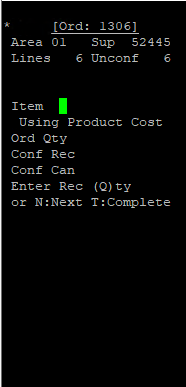
- enter C to toggle between ‘Using Product Cost’ and ‘Using Order Cost’
- enter A to Add a Product to the Order
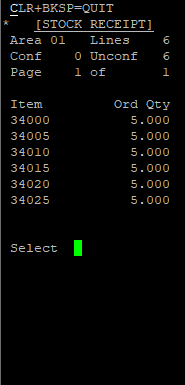
- enter U to display Product ID and Quantities for lines that still require confirmation (incomplete Product lines)
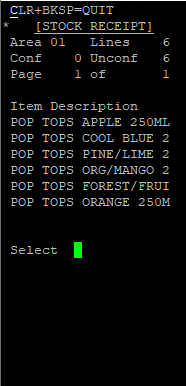
- enter D to display Product Descriptions for lines that still require confirmation (incomplete Product lines)
- enter R to cancel the Remaining Product lines
- enter T to complete the Order. Note: If the Supplier does not support Back Orders, any remaining Product lines will be cancelled.
- If a barcode is scanned, then the Product will be found, and quantity conversion will happen (from barcode unit type, to sold by unit type)
Confirmation screen H > Help Screen
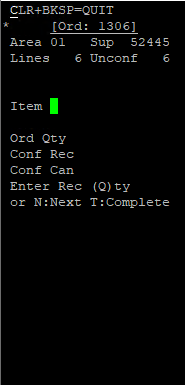
A with C > Cost option toggle A > 2nd Add a Product screen
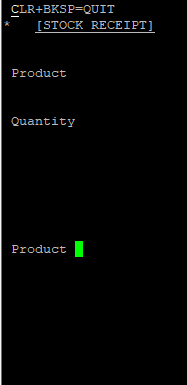
Information message Product Added
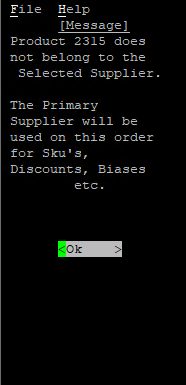
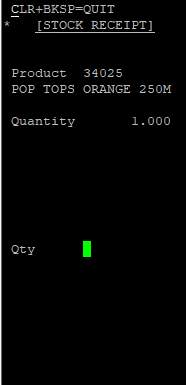
U > Product ID and Qtys D > Product Descriptions
R > cancel Remaining lines T > Complete with 1 line left
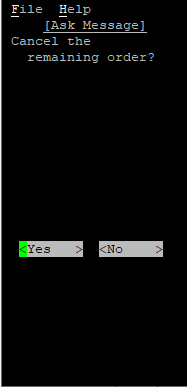
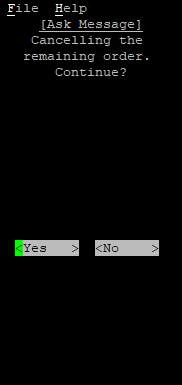
- In the LOWER keyin fields, users can:
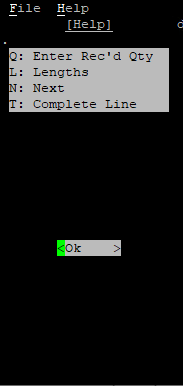
- enter H to display the Help menu
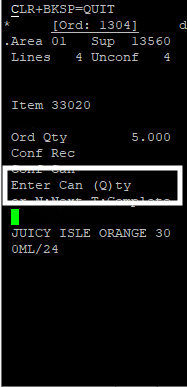
- enter Q to toggle between ‘Received Quantities’ and ‘Cancelled Quantities’
- enter N to move to the next Product line
- enter L to display current keyed in Lengths
- enter T to complete the Product line.
- If the Supplier does not support Back Orders, the remaining quantities will be cancelled
- The line will automatically complete if the remaining quantities are accounted for
- If a barcode is scanned, then quantity conversion will happen (from barcode unit type, to sold by unit type). Otherwise the quantity manually keyed in will convert from order by unit type, to sold by unit type
- If a barcode is scanned, then the quantity will be ‘added’ to the current count. Otherwise the quantity manually keyed in will ‘replace’ the current count
- Supports Shelf Date and quantities to be keyed in, if configured
- Supports lengths and quantities to be keyed in
H > Help Screen Q > Received Qtys
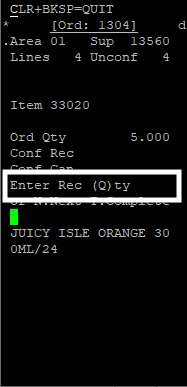
Q > Cancelled Qtys
Completion Screen
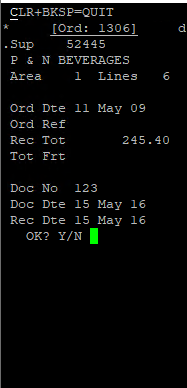
On using T to complete the Order, a new screen known as the Completion screen will load.
Users can:
- finalise the Delivery Docket Receipt
- enter in the Docket No, Docket Date, and optionally the Received Date
- enter Y to complete the receipt
On completion, the screen will move back to the Stock Receipt home screen.
Completion Screen