
ACR is introducing Multi-Factor Authentication (MFA) functionality across a number of processes within the system. This is an optional configuration feature. The processes covered include:
-
Login to ACR via desktop
-
Login to ACR via desktop and RF Gun
-
Single Touch Payroll
Let’s step through how to set MFA up and how this works for each menu below:
Setup steps:
Misc Configurations > User Group Authorisation
Within the Misc Configurations menu, User Group Authorisation tab, a new configuration called MFA Required has been created. Please note, only Users belonging to the Administrator User Group will now be able to access the ‘User Group Authorisation’ button.
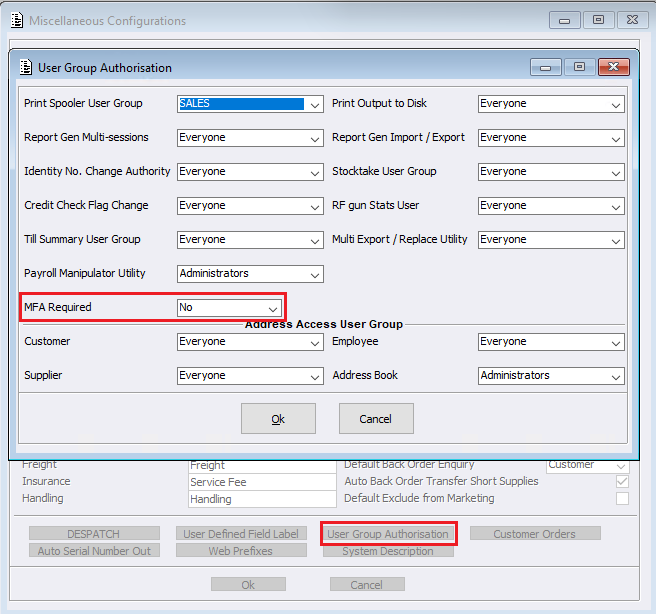
Whilst this setting acts as the default MFA requirement for the site, it can be overridden by specific User Group settings. This allows sites to determine how they wish to implement MFA across their system.
Options for setting the ‘MFA Required’ field include:
- No – MFA is not required by Default
- Yes – MFA is required for Desktop Login, RF Gun Login and STP processing.
- Yes (Excludes RF Guns) – MFA is required for Desktop Login and STP but not RF Gun Logins
User Groups Maintenance
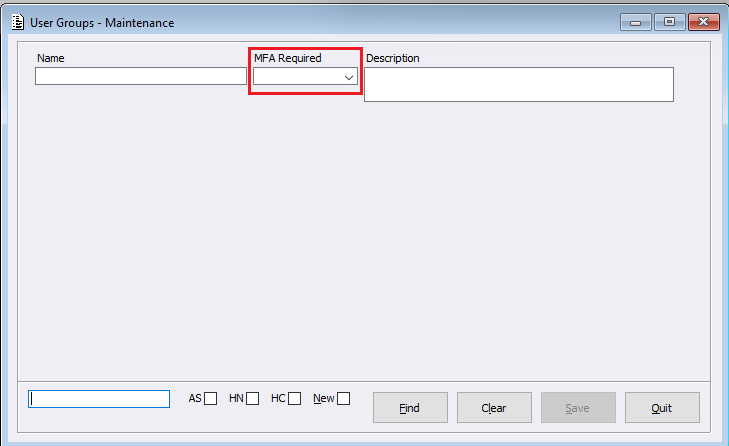
Within the User Groups Maintenance menu, a new dropdown setting called ‘MFA Required’ has been created, with the following options so as MFA can be applied via User Group.
- Default (follows the setting within Misc Configuration)
- No
- Yes
- Yes (ex RF Gun)
MFA Logic
The User Groups ‘MFA Required’ setting can overrule the site-wide MFA configuration. The MFA logic will determine if MFA is required and will be displayed within User Maintenance in the ‘MFA Required’ field for the user.
For example:
- When Misc Configuration MFA is set to Yes or Yes (Ex RF Gun), MFA will not be required where a user belongs exclusively to User Groups that are configured as No
- When Misc Configuration MFA is set to Yes or Yes (Ex RF Gun), MFA will be required where a user belongs to any User Groups that are configured as Yes or Yes (Ex RF Gun)
Meaning, where a user belongs to multiple User Groups and at least one of those groups requires MFA, MFA will be enforced even if another User Group is configured as No.
User Maintenance
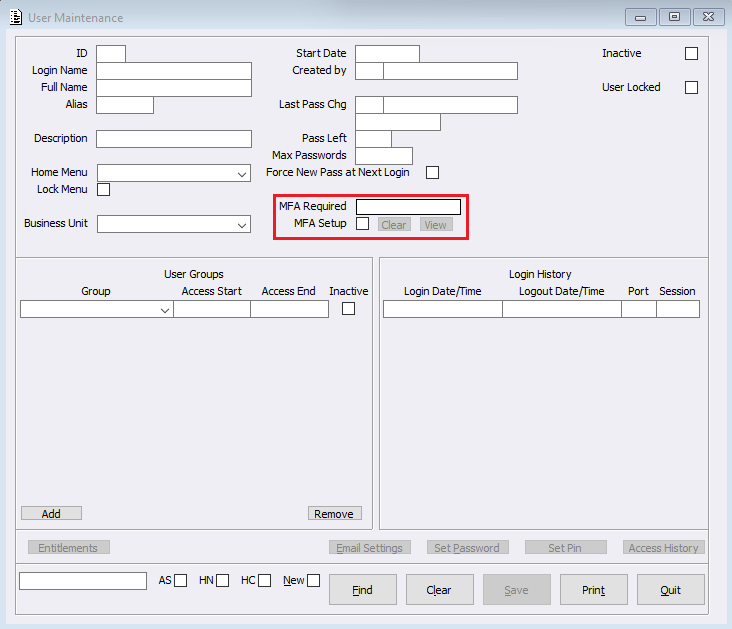
In support of the new Multi-Factor Authentication functionality, the User Maintenance menu has been enhanced to display MFA information for each user. Users will see two new fields have been created called:
- MFA Required
- MFA Setup
MFA Required
This field will indicate whether the user is required to use MFA based on the User Groups they belong to and the current MFA configuration.
MFA Setup
This tickbox will indicate whether MFA has already been configured for the user.
Clear
If MFA has been configured for the user, selecting Clear will remove the MFA registration. The user will be required to complete MFA setup again during their next login.
View
Displays the QR code associated with the user’s MFA setup.
User ‘Login Name’ changes
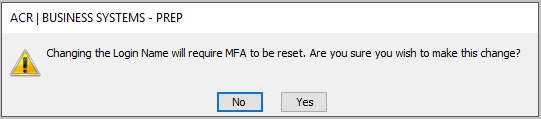
Once MFA has been configured, changing the user’s Login Name will clear the MFA registration. A warning message will be displayed before the change is completed:
How MFA works:
ACR User Login
The ACR Desktop Login now supports Multi-Factor Authentication. Where configured this can also apply to RF-Gun Login.
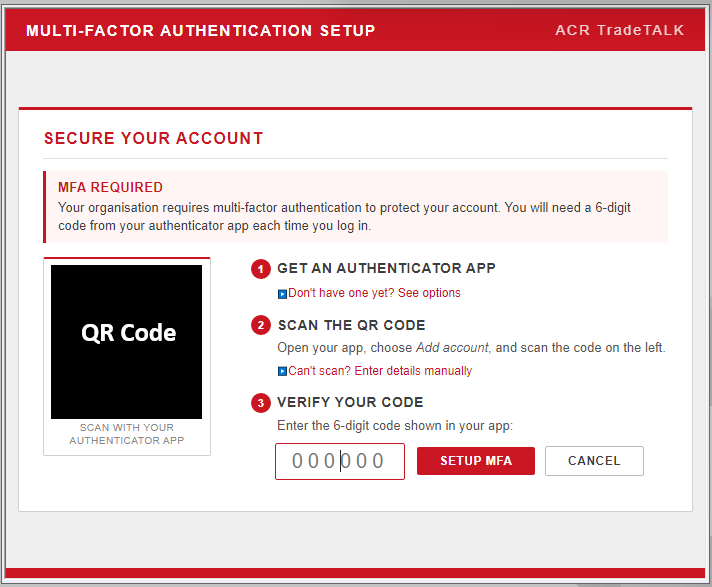
First-Time MFA Setup
If MFA is required for a User and MFA has not yet been configured, please follow the below steps:
- The User enters their Username and Password.
- The system will automatically prompt them to set up MFA.
- A QR Code will be displayed.
- The user scans the QR Code using an authenticator application.
- The user enters the verification code generated by the authenticator.
- MFA setup is completed.
Note: Initial MFA setup can only be completed from a standard desktop screen and cannot be performed from an RF Gun.
Subsequent Logins
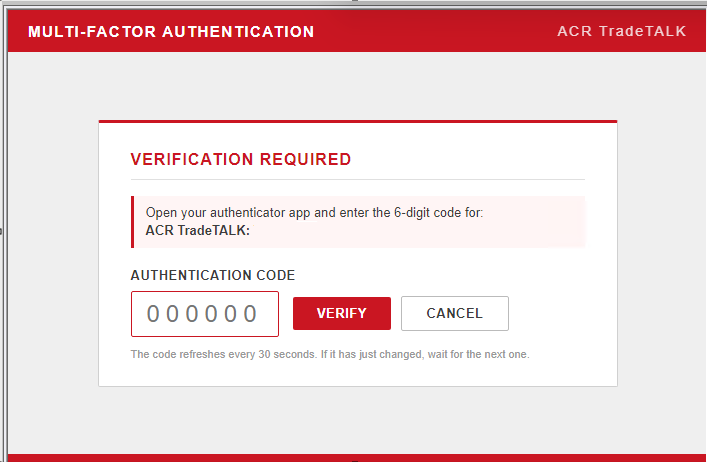
Where MFA is required and the User has already been configured, please follow the below steps:
- The User enters their Username and Password.
- The system prompts for the authentication code.
- The User enters the code from their authenticator application.
- Access is granted upon successful verification.
RF-Gun Logins
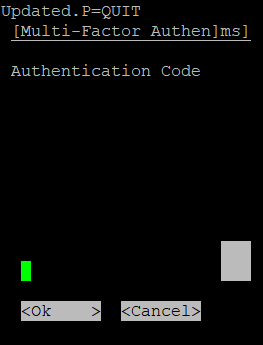
Where MFA is confifgured for RF-Guns, users will need to complete the Initial MFA setup steps listed above – which can only be completed from a standard desktop screen and cannot be performed from an RF Gun. Once completed, please follow the above steps for subsequent logins.
Single Touch Payroll (STP)
Multi-Factor Authentication can now be applied when submitting Single Touch Payroll declarations. When an STP submission is being processed, the user accepting the declaration will be checked to determine whether MFA is required based on the configured MFA settings.
When MFA is Required:
- The user completes the STP declaration process as normal.
- When the declaration is accepted and submitted, the system will prompt the user to enter their MFA verification code.
- The user enters the verification code from their authenticator application.
- Upon successful verification, the STP submission will continue and be processed.
When MFA is Not Required:
The STP declaration and submission process will continue without any additional authentication prompts.