
Within the Invoicing system a new Pre-Paid Product Invoice has been created to allow Customers to purchase and pay for Products in advance, likely at a discounted quantity and cost arrangement, to then receive progressively as stock is required.
The Pre-Paid Product System needs to be configured by:
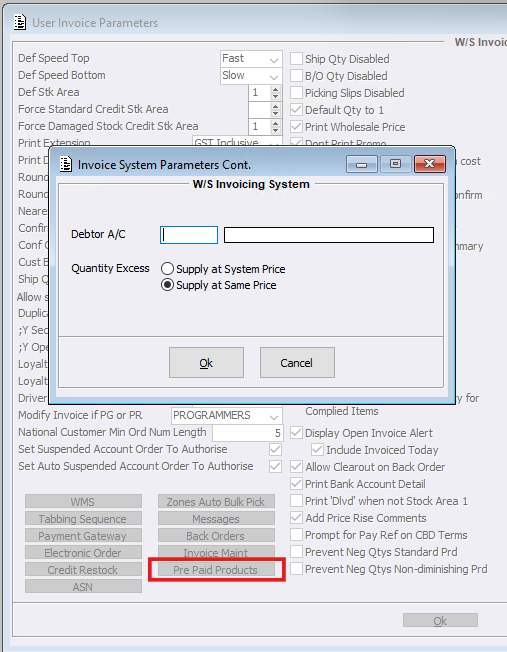
- Creating a dedicated Debtor Account to be used as the ‘Pre-Paid Product Debtor Account’.
This account is used by ACR as the system account for Pre-Paid Product transactions and should not be used as a normal trading Debtor Account. When the Pre-Paid Product is created, a credit invoice is generated against the configured ‘Pre-Paid Product Debtor Account’. This provides the offset for the original prepaid transaction without reducing physical stock. - Within Invoice Configuration > Pre Paid Products, set ‘Pre-Paid Product Debtor Account’.
This account will be used when generating the corresponding credit transactions associated with Pre-Paid Products. - Determine which Stock Areas will be used for Pre-Paid Products.
Pre-Paid Products remain associated with the Stock Area used when the original Pre-Paid Product invoice is created. Any subsequent supply against that prepaid quantity must be drawn from the same Stock Area. - Set the ‘Over Order Quantity Behaviour’ configuration.
Select the required behaviour when a Customer orders more than their remaining prepaid quantity:- ‘Supply at Same Price’ – supply the remaining prepaid quantity and allow the additional quantity to be supplied at the same Pre-Paid Product price.
- ‘Discard Excess’ – restrict the quantity to the remaining prepaid balance and remove the excess quantity from the invoice.
Creating a PPP Invoice
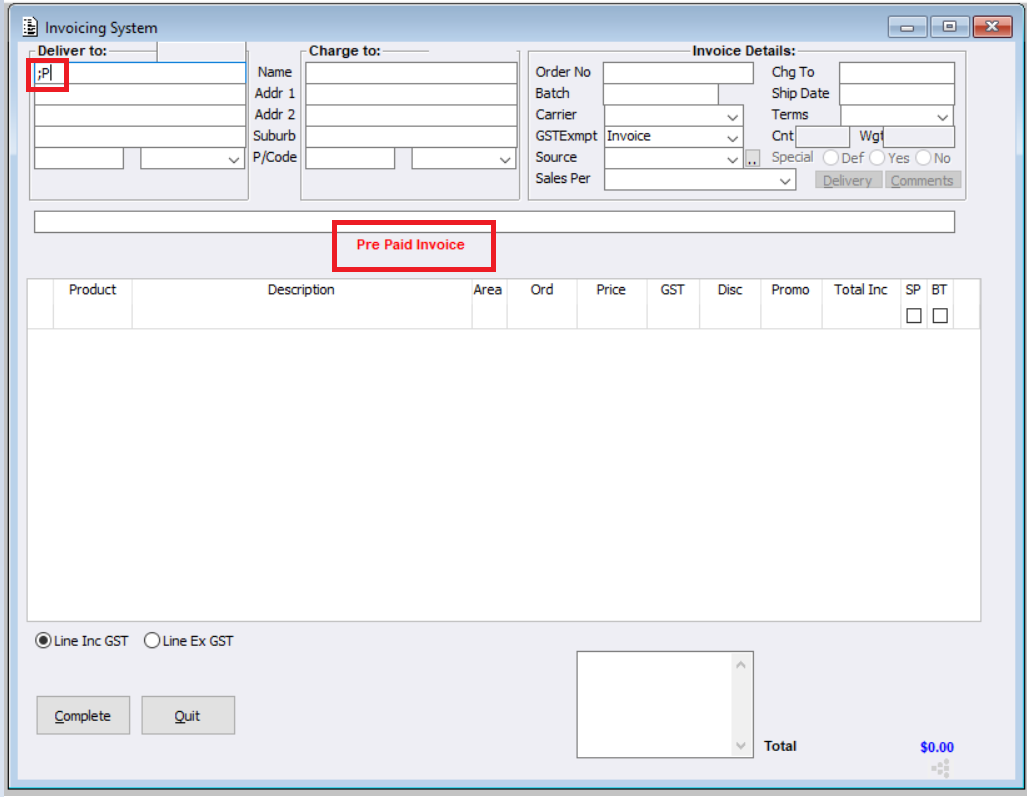
- Within Invoice Entry Users will need to enter ;P within the Deliver To details box. This identifies it as a Pre Paid Invoice.
- Enter the Customer number
- Add the product/s the customer is purchasing as Pre-Paid Products and key in the agreed price/quantities to pay for in advance. The invoice should contain only the products being purchased as part of the Pre-Paid Product arrangement.
- Check the Stock area is correct. The Stock Area selected at this stage is retained against the Pre-Paid Product. When the customer later receives the product, stock must be drawn from this same Stock Area.
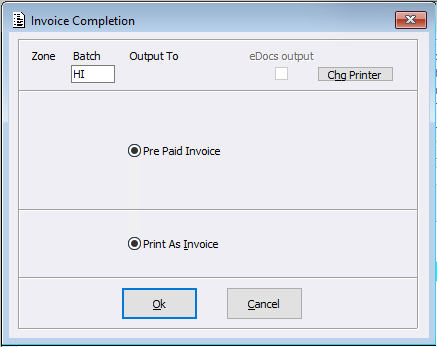
When a Pre-Paid Product Invoice is created:
- The prepaid quantity and agreed price are recorded and saved. They can be viewed and also reversed if required within a new menu item called ‘Pre Paid Products’. Users can reverse multiple Pre Paid Product Invoices for the same customer by checking the tick boxes prior to clicking reverse selected.This screen has sortable headings and also has a refresh button to refresh the data.
- No stock is reduced until the product is physically supplied when the Customer draws on the Pre-Paid Product total.
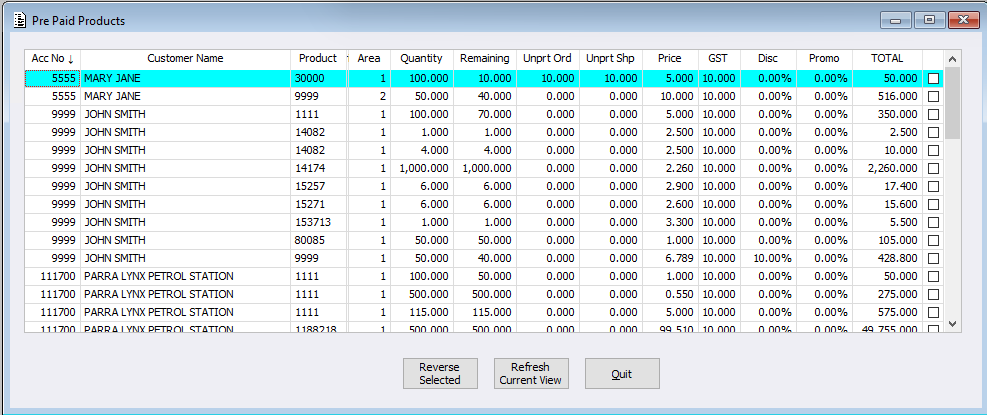
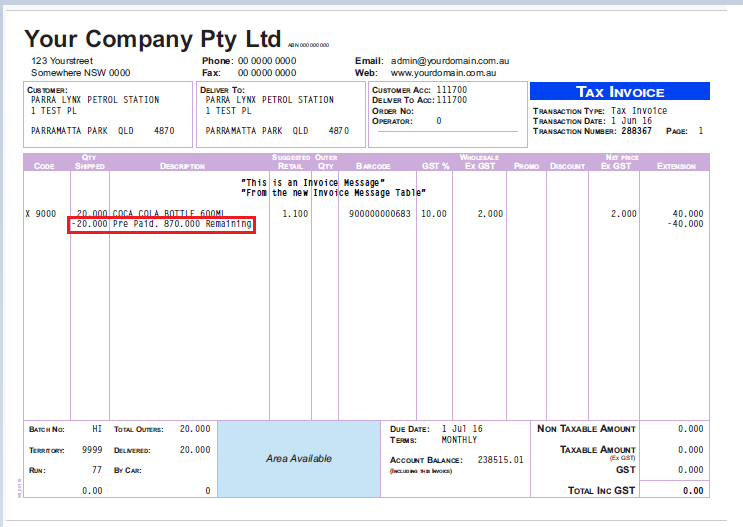
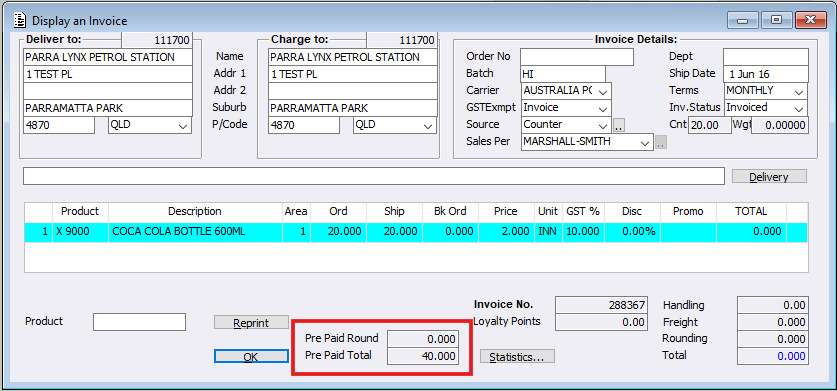
Moving forward when a Customer makes an order (inclusive of electronic orders- non controlled) the system will recognise this product has been pre paid so will not affect the Invoice total. Stock on Hand will then be reduced and the Customer Pre Paid Product total remaining will update (remaining total will also print on Customer Invoice).
Invoice Sales Journal
At the bottom of the Invoice Sales Journal there is a new heading with the ‘PRE PAID PRODUCT’ total. When a Pre Paid Product amount exists, Journals will be created with the following details:
- DEBIT the Total Pre Paid Product amount to the ‘Pre Paid Debtor Account’.
- For each Invoice, CREDIT the Charge To Customer with that Invoice’s Pre Paid Product amount
- The Journals created for each Charge To Customer will auto-allocate with the Invoices (if able).
Notes:
- A Pre-Paid Invoice should contain only the products being prepaid and is used to record the agreed quantity, price and Stock Area for the arrangement. It does not represent the physical supply of the stock, does not reduce stock at the time it is created.
- Stock movement and the associated accounting for the supply of the goods occur as the customer subsequently draws down and receives the prepaid products.
- In some scenarios there may be a non 0 total, eg if Levy is added to a Product after the fact.
- If there are multiple Pre Paid Product records for the same Customer/Product combination the system will use the oldest first.